Never in the way
During quests the card takes no keyboard focus and accepts clicks only on itself. Every shortcut you are learning keeps working. Drag it to any corner or click Omi to shrink it to just the face.
For kids 6 to 15 on Omarchy Linux
Omi turns a child's first session on Linux into a short adventure: pick a vibe, and the whole computer changes to match. Then do six real things with the keyboard while Omi watches. When you press the keys, Omi sees it and cheers.
Free and open source (MIT). No accounts, no network, no tracking.
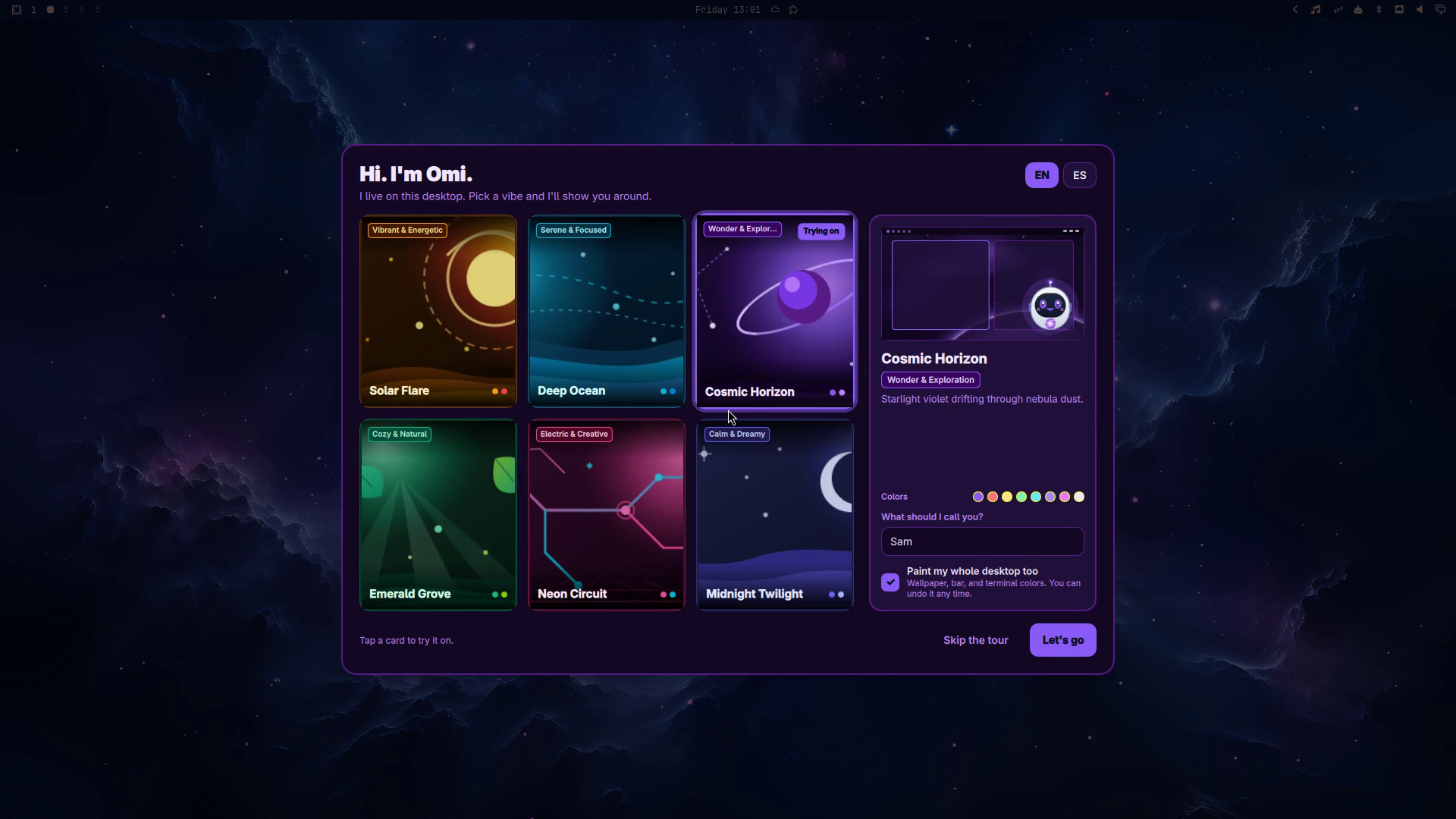
Six looks. Choosing one in Omi repaints the wallpaper, the bar, the terminal, and the window borders on the real desktop. Undo is one click.
The first computer a kid really gets to call their own shapes how they think computers work for a long time. Omarchy is a fast, beautiful, keyboard-first Linux desktop, but it assumes you already know that Super + Space opens the menu and that windows tile themselves. A six-year-old does not know that. A fifteen-year-old will not read a manual to find out.
Omi never explains at you. It asks you to do the thing, then proves it noticed. The goal is that a child walks away believing Linux is theirs, not that it is hard.
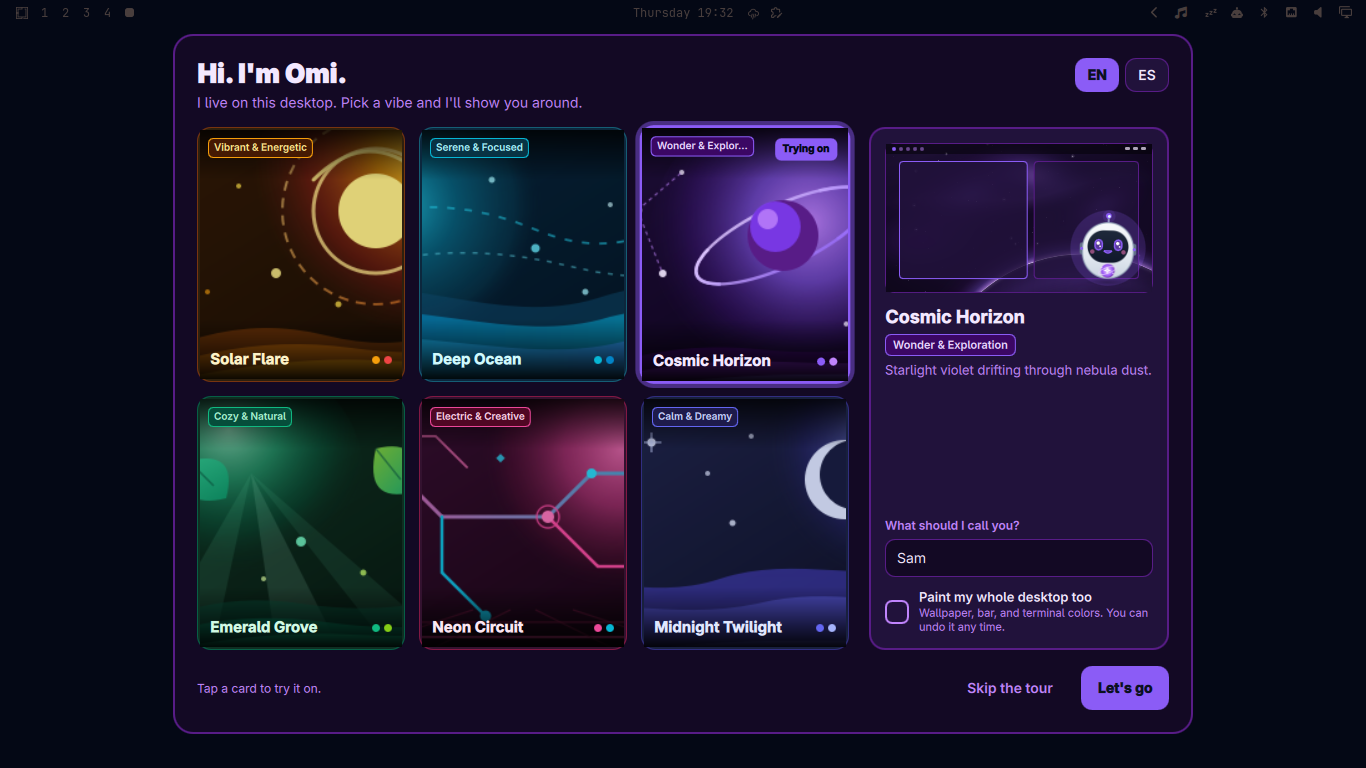
Omi introduces itself and asks your name (optional). Tap a card to try it on; Omi changes outfit to match. English and Spanish.
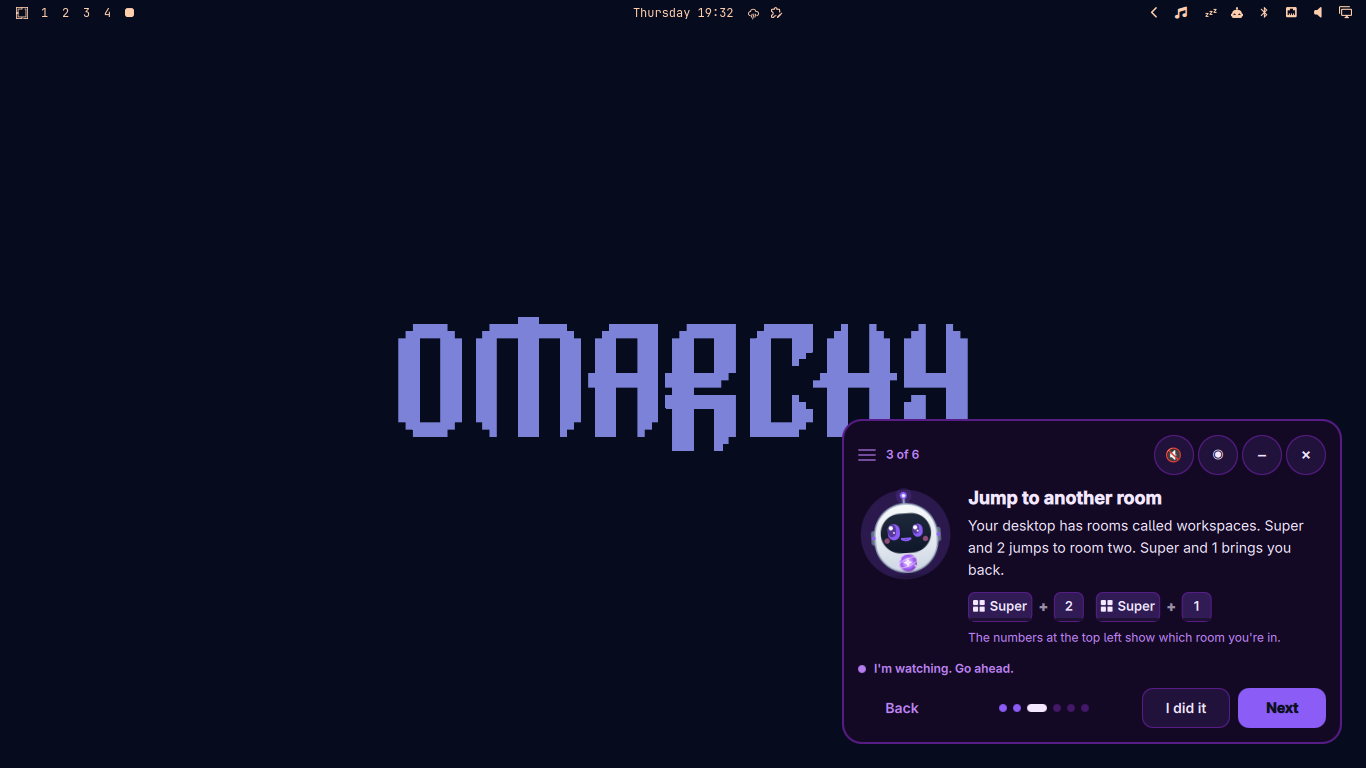
Confirm, and the picker dissolves while the real desktop recolors underneath. Omi flies to a corner as a small card that never blocks anything.
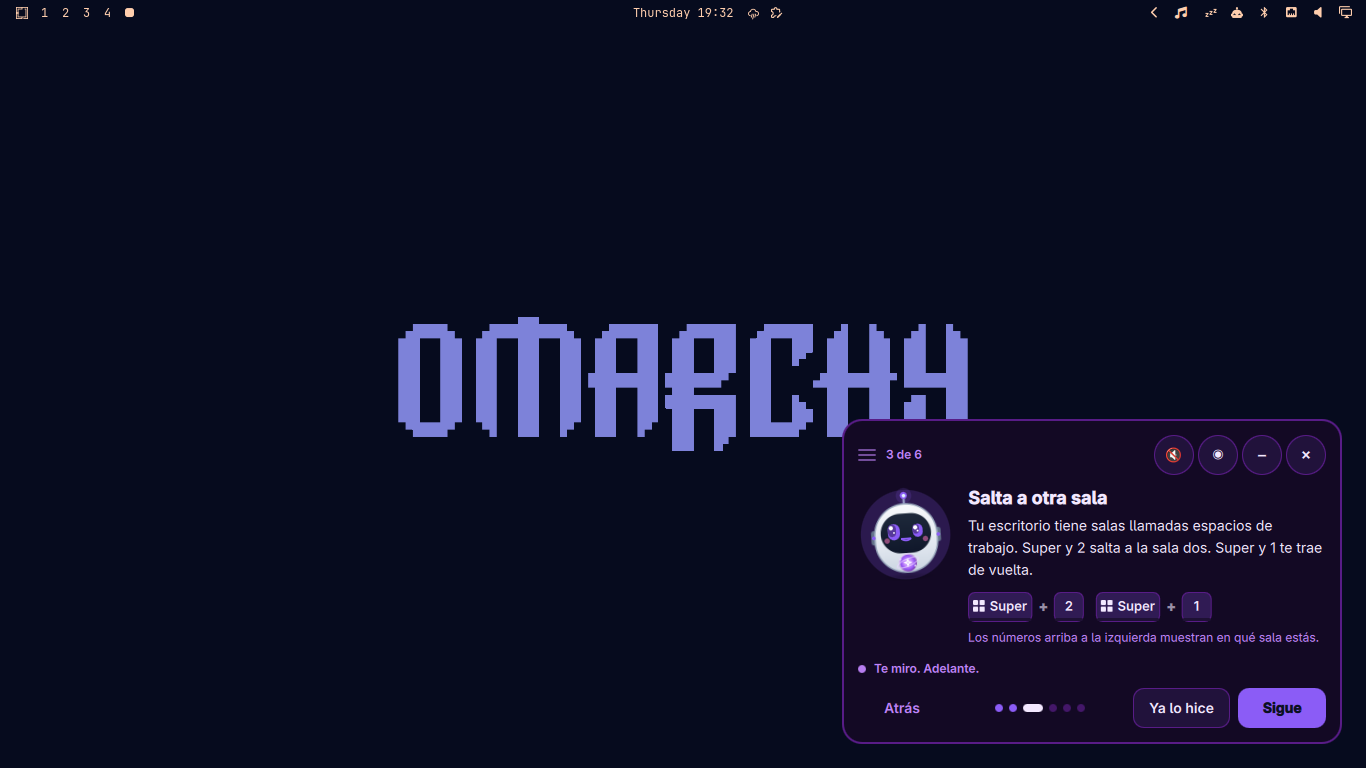
Each quest shows one real shortcut as keycaps. Omi listens to the desktop and reacts the instant you do it. Next always works too.
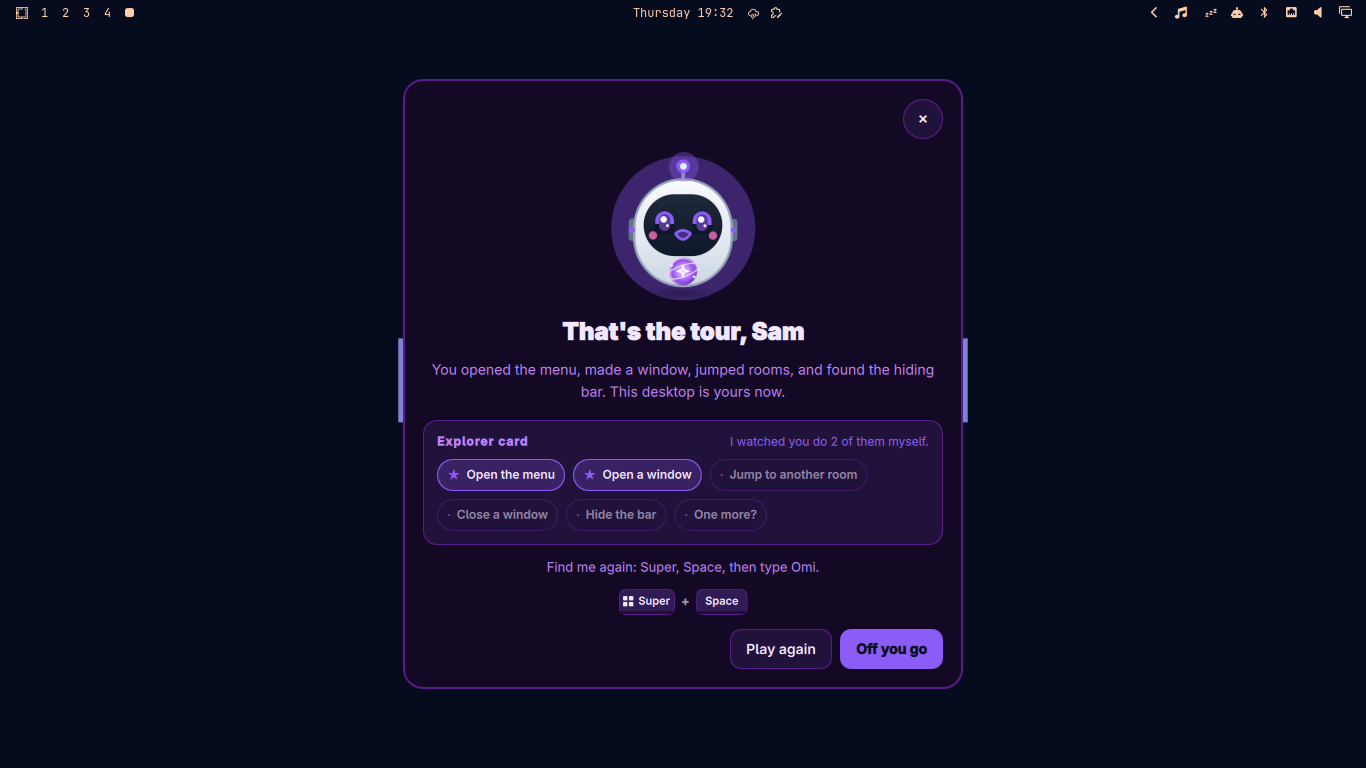
Stamps for every quest, a star when Omi saw it, and exactly how to find Omi again. Then Omi gets out of the way.
Every key is a stock Omarchy binding, verified by the test suite against the installed defaults.
| Quest | You do | Omi sees |
|---|---|---|
| Open the menu | Super + Space, then close it | the menu open, then close |
| Open a window | Super + Enter | a window appear |
| Jump to another room | Super + 2, then Super + 1 | two workspaces visited |
| Close a window | Super + W | a window close |
| Hide the bar | Super + Shift + Space, twice | the bar vanish and return |
| One more? (optional) | Super + KSuper + Ctrl + ESuper + Ctrl + Space | a shortcut sheet, emoji picker, or wallpaper menu open |
Omi only says "I saw that" when it really did. If a signal is missing, the quest still completes with I did it or Next; it just gets a check instead of a star.
During quests the card takes no keyboard focus and accepts clicks only on itself. Every shortcut you are learning keeps working. Drag it to any corner or click Omi to shrink it to just the face.
Omi's eyes follow your pointer, glance up at the bar when the lesson is about the bar, blink at their own pace, and step aside when the menu opens.
Desktop painting is a checkbox. "Put my old look back" restores exactly the theme you had. Everything Omi writes lives in your home folder and is listed in the README.
Three soft sound cues, never more than one a second, never over a fullscreen window, mutable. A calm-motion mode follows your Hyprland animation setting.
The previous version taught "tap the Super key", which does nothing on Omarchy. Now every shortcut on screen is tested against the shipped keybindings.
After the tour Omi is one search away: Super + Space, type Omi. It also appears in the Apps menu.
On any Omarchy machine:
omarchy plugin add https://github.com/DailenG/omi.git --enable
~/.config/omarchy/plugins/dailen.omi/bin/omi
To greet a new user automatically on their first login:
omarchy hook install post-boot ~/.config/omarchy/plugins/dailen.omi/scripts/first-run-check.shomarchy plugin remove dailen.omi
omarchy theme set <your previous theme> # if you let Omi paint the desktop
rm -rf ~/.config/omarchy/themes/omi-* ~/.config/omi
sed -i '/"learn.omi": /d' ~/.config/omarchy/extensions/omarchy-menu.jsonc
rm -f ~/.local/share/applications/omi.desktopRequires Omarchy with the Quickshell shell and Hyprland. Desktop painting uses Omarchy's own omarchy-theme-set and rsvg-convert; sounds use PipeWire's pw-play. Each is optional and skipped quietly if missing.